BLOG: FIELD NOTES
Should You Use a Time Tracker With a Remote VA?
A plain look at when a time tracker helps with a remote virtual assistant, what five common trackers actually capture, and what I would measure instead of hours.

FIG. 01: A written to-do list with ticked items shows results, not hours logged.
QUICK ANSWER
Should you use a time tracker with a remote VA?
Use a simple timer or a weekly hours report, not screenshot tracking. A tracker records hours, not results. Screenshot tools like Hubstaff and Time Doctor can feel invasive, and they measure activity instead of output. The exception is hourly work on Upwork, where tracked time is what qualifies for payment protection.
I work as a virtual assistant from the Philippines, so I have seen time trackers from the worker’s side. This post compares five common tools, says where I think tracking is worth it, and lists what I would track instead of hours.
Why do I dislike screenshot time trackers?
I tried Hubstaff. It took screenshots of my computer at random, and it made me uncomfortable. That is one person’s experience, but my view is that it points to a real cost for owners: a VA who feels watched spends effort looking busy.

FIG. 02: Random screenshots can leave a VA feeling watched.
There is also a measurement problem. Trackers record hours and activity. Upwork’s tracker, for example, logs keyboard and mouse activity levels along with screenshots. Activity is not output. A VA can have a busy-looking hour and finish nothing, or finish a day’s work in a quiet hour of careful checking. The numbers an owner cares about are errors, response times, and tasks closed.
At Sales Fury, an automated inventory tracking system I built cut data-entry errors by 95% and improved data reliability by about 40%. Those are the kind of numbers I would rather be judged on than a timesheet.
How do five common time trackers compare?
These tools fall into two groups. Hubstaff, Time Doctor, and Upwork’s tracker are built to monitor. Toggl Track and Clockify are built mainly to record time, although Clockify adds optional screenshots on higher plans.
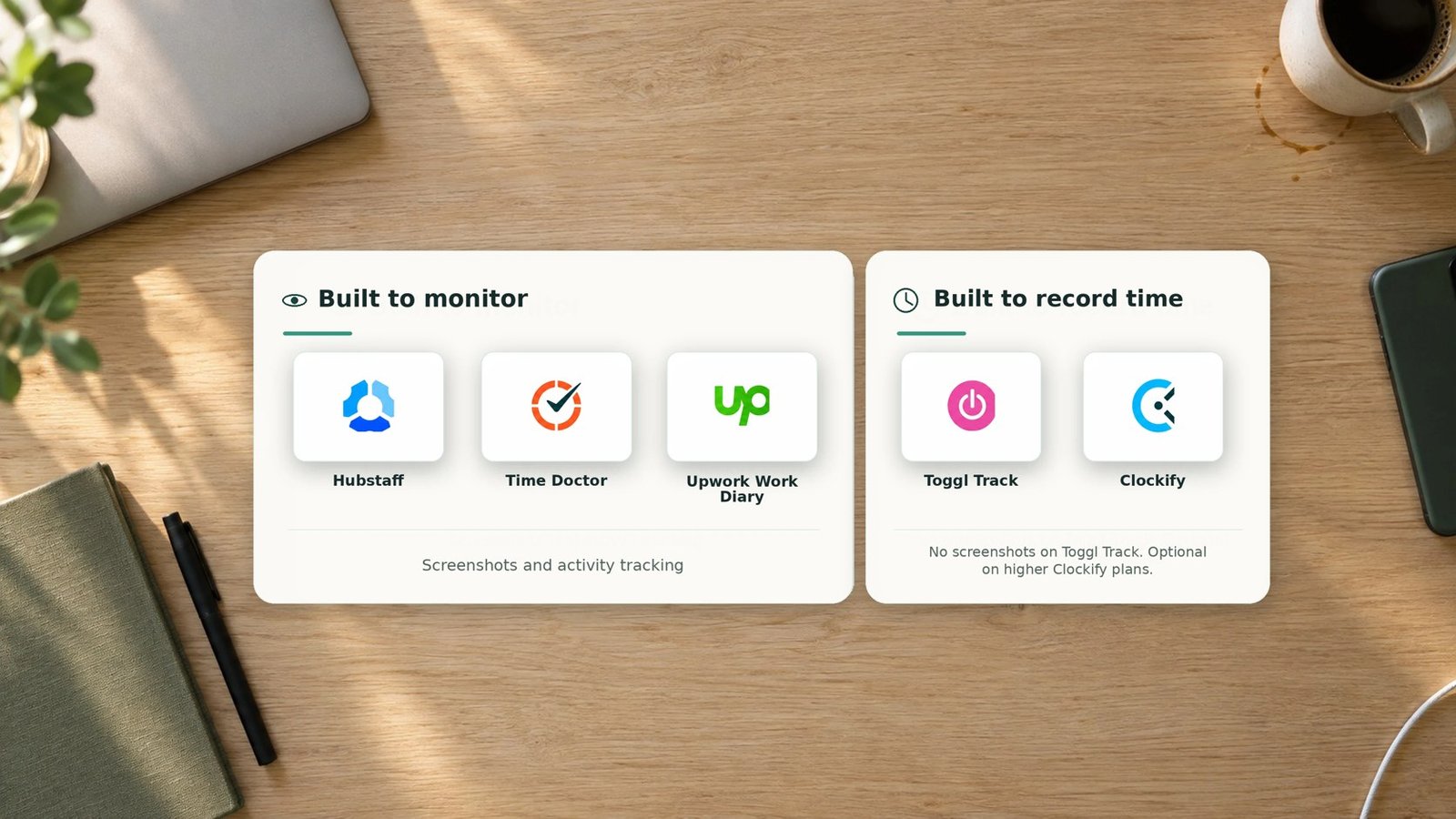
FIG. 03: Tools built to monitor compared with tools built to record time.
| Tool | How it tracks | Screenshots | Starting price |
|---|---|---|---|
| Hubstaff | Timer with activity levels, optional GPS | Yes. 500 per user per month on Starter, 1,500 on Grow, unlimited on Team | From $4.99 per user per month |
| Time Doctor | Timer with activity and app tracking | Yes, from the Basic plan. Employees can see their own | About $6.70 to $8 per user per month for Basic |
| Upwork Work Diary | Built-in desktop tracker on hourly contracts | About six per hour, plus keyboard and mouse activity levels | Built into hourly contracts |
| Toggl Track | Timer or manual entries | None on any plan | Free for up to 5 users. Starter from $9 per user per month, billed annually |
| Clockify | Timer, manual entries, kiosk | Optional, on Pro and Enterprise only | Free plan. Paid from $3.99 per user per month, billed annually |
Prices come from vendor pages where available and from third-party price trackers where not, and they change often. Time Doctor’s Basic plan shows different prices across sources, so confirm it on Time Doctor’s site before you buy.
When is a time tracker worth using?
- You hire hourly on Upwork. Only time logged with the tracker is eligible for Upwork Hourly Protection. Manual time is not protected.
- Your own client needs proof of hours. If you bill by the hour, you may need records you can show.
- You are setting scope. A plain timer for a few weeks shows how long tasks really take.
Outside those cases, I would use a plain timer or a daily report. For how to find and test candidates, read how to hire a virtual assistant in the Philippines and the Upwork hiring guide. For a platform comparison, see Upwork vs OnlineJobs vs JobStreet vs Indeed.
What should you track instead of hours?
Track outcomes that match each task. This is the setup I would use:
- Write what done looks like. For each task, state the result, such as inbox sorted daily or listings matching the master spreadsheet.
- Ask for a three-line daily report. Done, blocked, and next. It takes two minutes and shows problems early.
- Pick two or three weekly numbers. For example first reply time, tickets closed, and error count.
- Automate the log. Use Zapier or Make to write each completed task to a Google Sheet or HubSpot with a timestamp.
- Spot-check a sample. Review a handful of finished tasks each week and write down corrections.
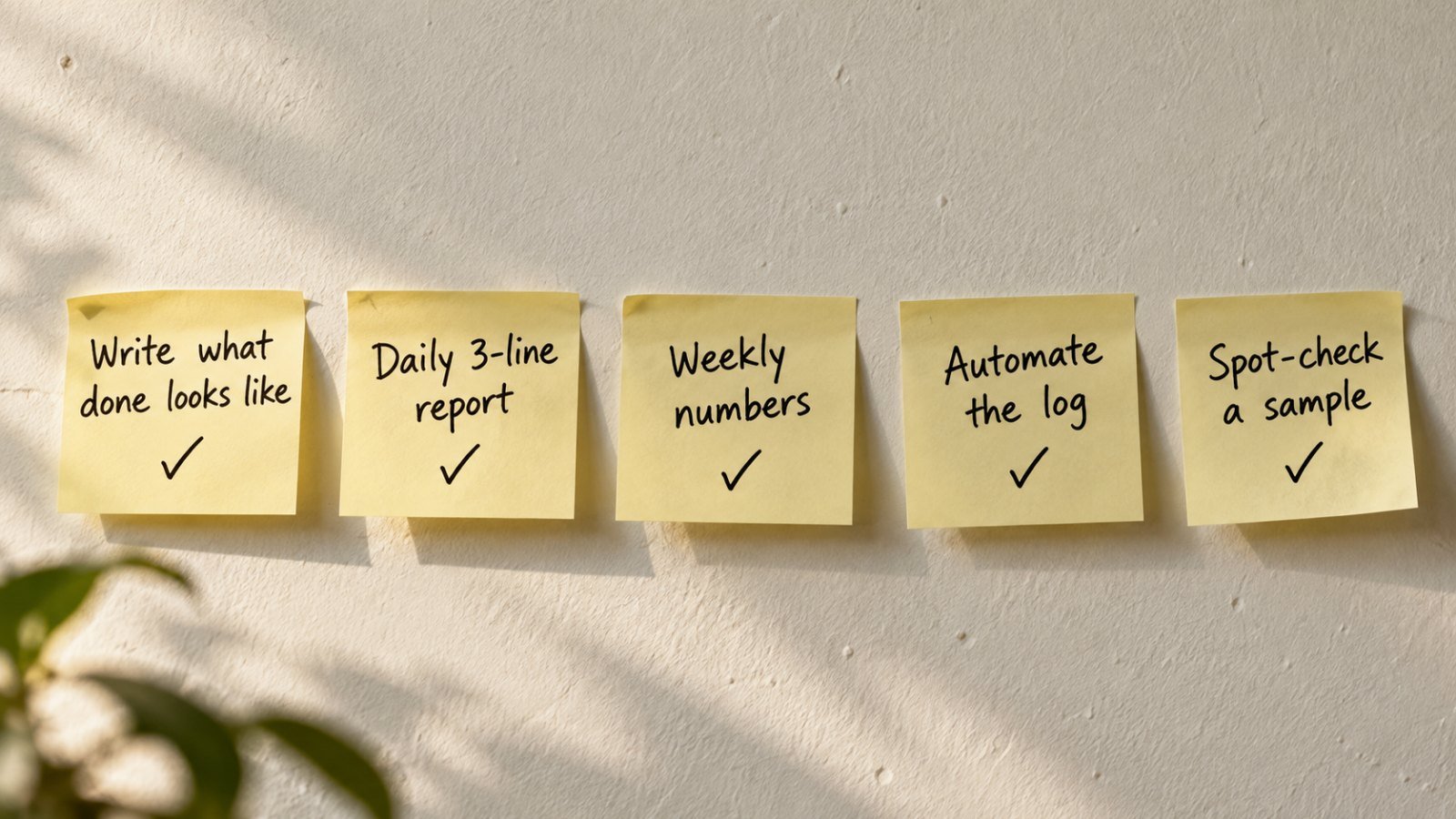
FIG. 04: Five steps for tracking results instead of hours.
Step four is where automation earns its place. A webhook can fire when a ticket closes in Gorgias or a record changes in HubSpot, and Make or Zapier can write a row with the time, so the counts build themselves. If you are choosing a tool, read Zapier vs Make for Shopify. For how webhooks work, see what a webhook is, with a Shopify example. For CRM records, see the HubSpot workflow automation service.
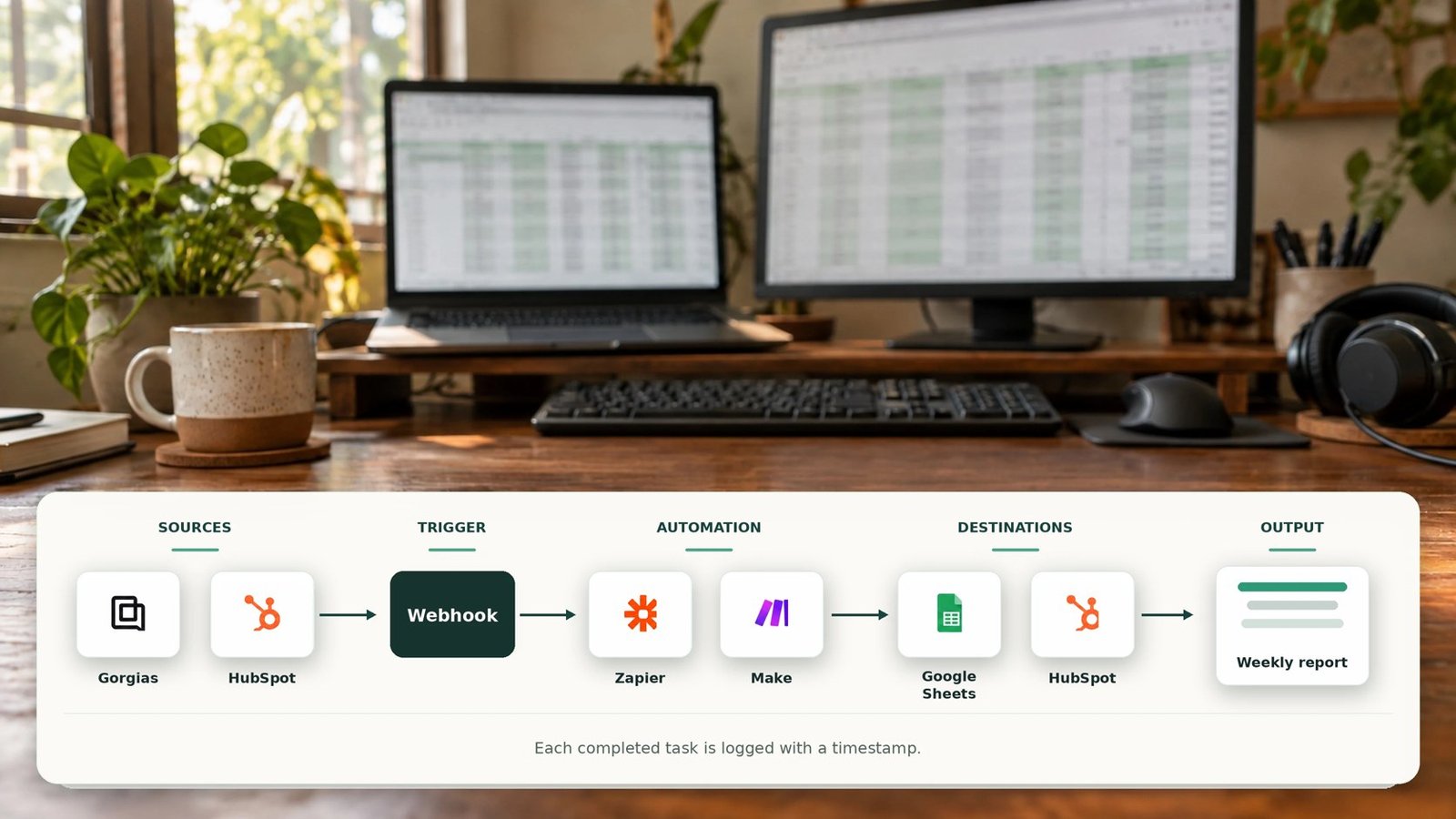
FIG. 05: A webhook-driven flow logs each completed task with a timestamp.
If AI tools draft part of the work, measure the checked output the same way. I cover that split in can AI replace your virtual assistant.
How do you use a tracker fairly if you must?
- Choose the lightest option. If a timer does the job, skip screenshots.
- Say what is captured. Tell your VA in writing what the tool records and who can see it.
- Pick a tool the VA can inspect. Time Doctor, for example, gives employees access to their own screenshots and offers blurring.
- Judge results first. Use hours as a billing record, not as the measure of performance.
- Ask a lawyer. Privacy rules depend on where you and your VA live. I am not a legal advisor.
Not hired yet? Read the signs it is time to hire a virtual assistant. For the role itself, see the virtual assistant service page.
Frequently asked questions
Should I use a time tracker with a remote VA?
Only if the contract needs proof of hours, such as an hourly Upwork contract. For direct hires, a simple timer or a short daily report is enough for most owners. Pair either with weekly measures like response time and error counts so you manage results, not hours.
Do time trackers take screenshots of a VA’s screen?
Some do. Hubstaff and Time Doctor can capture screenshots, and Upwork’s tracker takes about six an hour on hourly contracts. Toggl Track has no screenshots on any plan, and Clockify offers them only on higher plans. Check the settings and tell your VA in writing what is captured.
Is it legal to monitor a remote VA with a time tracker?
It depends on where you and your VA live and whether the VA is a contractor or an employee. I am not a legal advisor. Tell your VA in writing what is captured, collect only what you need, and ask a lawyer about the privacy rules that apply to you.
What is the best free time tracker for a remote VA?
Toggl Track and Clockify both have free plans, and both work with a timer or manual entries. Toggl’s free plan covers up to 5 users and has no screenshots. Clockify’s help center also lists a free plan for up to 5 users. Pick the one your VA finds easier to use.
What should I track instead of hours?
Track results that match each task, such as tickets closed, first reply time, records updated, and error counts. Ask for a three-line daily report covering what was done, what is blocked, and what is next. Review a sample of finished work each week.
Can I automate reporting so I do not need a tracker?
In many cases, yes. A Zapier or Make workflow can write each completed task, ticket, or record update to a Google Sheet or HubSpot with a timestamp. You then get counts and response times each week without watching a screen.
Sources
- Hubstaff Support: Plans and pricing
- Hubstaff: Pricing guide
- WorkTime: Time Doctor review
- Dupple: Time Doctor review
- Upwork Help: Review your freelancer’s work diary
- CostBench: Toggl Track vs Clockify pricing
- CostBench: Clockify hidden costs
- Clockify Help: Subscription plans
Prices and features can change. Several prices come from third-party trackers, not from the vendors.
WANT THE REPORTING SET UP?
Track results without watching screens
I build Zapier and Make workflows that log task counts, response times, and errors to a sheet or HubSpot, so you get a weekly report without a tracker.